4
1
KWD10
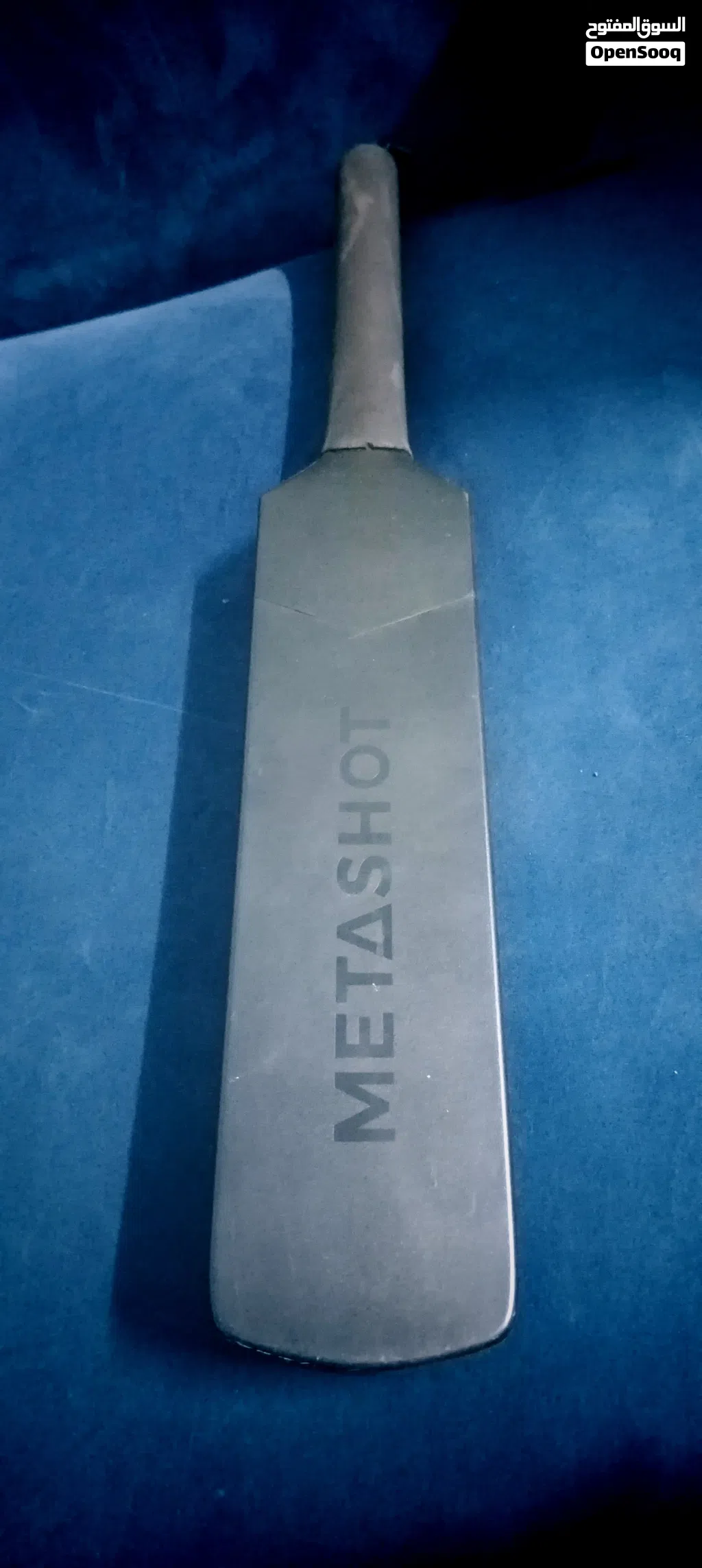
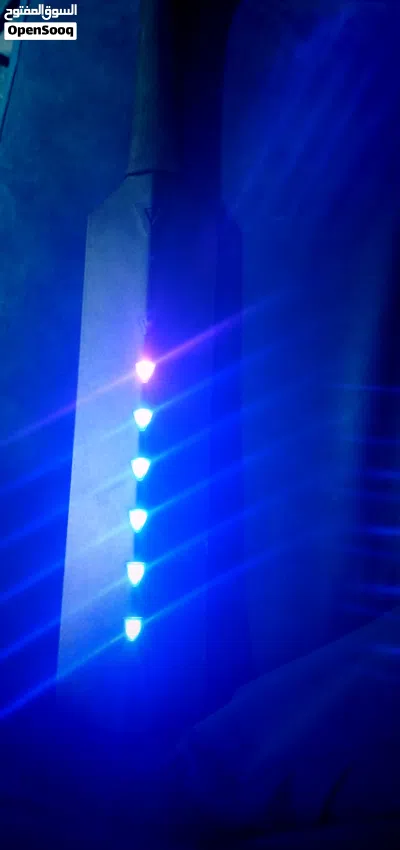
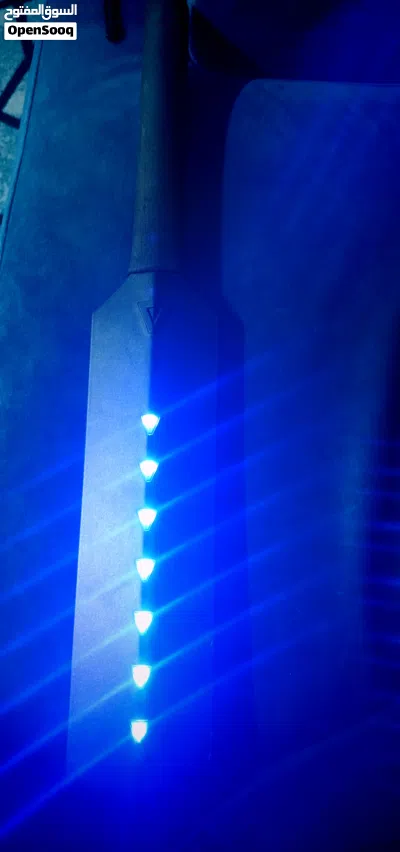
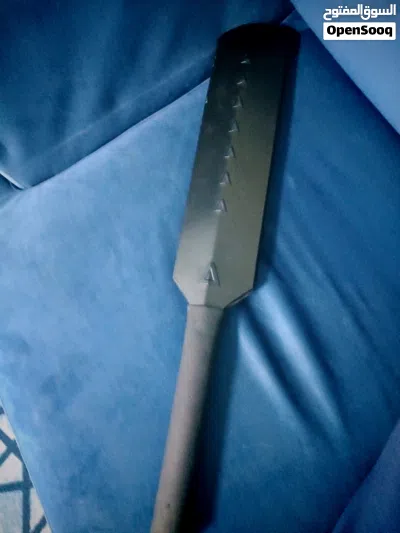
Metashot smart cricket bat
- NeighborhoodAbbasiya
- CityFarwaniya
- Sub CategoryOther Toys
- CategoryGaming & Toys
- Listing Id283383760
- Published Date30-06-2026
Description
The MetaShot Smart Bat is a virtual cricket training and gaming device that connects to your phone or TV to simulate a real cricket experience. It uses sensors to track your swing, power, and timing.
Here is a step-by-step guide to getting started.
Step 1: Charge the Bat
Before your first session, the bat needs power.
Charging: Use the provided USB-C cable and a standard mobile charger.
Time: Charge it for at least 2–3 hours before the first use.
Indicator: The light on the bat will indicate the charging status (refer to your specific model's light color, usually red or blinking).
Step 2: Download the MetaShot App
The bat does not work alone; it needs the official app to process your shots.
Mobile/Tablet: Search for "MetaShot Smart Cricket" on the Google Play Store or Apple App Store.
PC/Laptop: Visit the MetaShot website to download the Windows version.
Step 3: Pair the Bat (Bluetooth)
Important: Do not try to pair the bat through your phone’s Bluetooth settings menu.
Turn on Bluetooth and Location Services (GPS) on your phone.
Open the MetaShot App.
Turn on the bat: Long-press the MetaShot logo/button on the handle until the blue light starts blinking.
In the app, select a game mode (like "Quick Play"). The app will automatically find the bat.
Once connected, the bat's light will turn solid green.
Step 4: Calibration & Proper Stance
For the sensors to track accurately, you must calibrate the bat before every delivery.
Wear the Lanyard: Always put the safety strap around your wrist to prevent the bat from flying out of your hands.
The Stance: Stand in a standard cricket batting stance. Hold the bat straight and steady.
The "Tap": Briefly press (do not long-press) the power button. This tells the game you are ready and sets your "zero" position.
The Swing: Watch the ball on the screen. Swing just as the ball is about to reach the pitch marker. The game relies on timing, not just how hard you hit.
How to Use with a TV
If you have the TV Connector Bundle, follow these steps to play on a big screen:
Connection: Plug the MHL/HDMI cable into your TV’s HDMI port and the USB end into a power source (or the TV's USB port).
Source: Change your TV input to the correct HDMI source.
Android Users: You may need to download the MiraPlug App and set your USB connection to "Data Transfer" mode.
iPhone Users: Tap "Trust this Device" when the pop-up appears on your phone.
Troubleshooting Tips
Connection Lost: If the bat disconnects, ensure you didn't accidentally long-press the button during play (which turns it off).
Inaccurate Shots: If your shots aren't registering correctly, recalibrate by standing still and tapping the button again.
Reset: If the bat becomes unresponsive, find the small reset pinhole near the charging port. Use a SIM ejector tool to press it for 10 seconds.
Here is a step-by-step guide to getting started.
Step 1: Charge the Bat
Before your first session, the bat needs power.
Charging: Use the provided USB-C cable and a standard mobile charger.
Time: Charge it for at least 2–3 hours before the first use.
Indicator: The light on the bat will indicate the charging status (refer to your specific model's light color, usually red or blinking).
Step 2: Download the MetaShot App
The bat does not work alone; it needs the official app to process your shots.
Mobile/Tablet: Search for "MetaShot Smart Cricket" on the Google Play Store or Apple App Store.
PC/Laptop: Visit the MetaShot website to download the Windows version.
Step 3: Pair the Bat (Bluetooth)
Important: Do not try to pair the bat through your phone’s Bluetooth settings menu.
Turn on Bluetooth and Location Services (GPS) on your phone.
Open the MetaShot App.
Turn on the bat: Long-press the MetaShot logo/button on the handle until the blue light starts blinking.
In the app, select a game mode (like "Quick Play"). The app will automatically find the bat.
Once connected, the bat's light will turn solid green.
Step 4: Calibration & Proper Stance
For the sensors to track accurately, you must calibrate the bat before every delivery.
Wear the Lanyard: Always put the safety strap around your wrist to prevent the bat from flying out of your hands.
The Stance: Stand in a standard cricket batting stance. Hold the bat straight and steady.
The "Tap": Briefly press (do not long-press) the power button. This tells the game you are ready and sets your "zero" position.
The Swing: Watch the ball on the screen. Swing just as the ball is about to reach the pitch marker. The game relies on timing, not just how hard you hit.
How to Use with a TV
If you have the TV Connector Bundle, follow these steps to play on a big screen:
Connection: Plug the MHL/HDMI cable into your TV’s HDMI port and the USB end into a power source (or the TV's USB port).
Source: Change your TV input to the correct HDMI source.
Android Users: You may need to download the MiraPlug App and set your USB connection to "Data Transfer" mode.
iPhone Users: Tap "Trust this Device" when the pop-up appears on your phone.
Troubleshooting Tips
Connection Lost: If the bat disconnects, ensure you didn't accidentally long-press the button during play (which turns it off).
Inaccurate Shots: If your shots aren't registering correctly, recalibrate by standing still and tapping the button again.
Reset: If the bat becomes unresponsive, find the small reset pinhole near the charging port. Use a SIM ejector tool to press it for 10 seconds.
Frequently Asked Questions
How many listings are there in Other Toys?
What's the safest method to contact advertisers?
How can I arrange a safe meeting and verify the product quality?

1
15-07-2025
General Tips
- Only meet in public places
- Never pay or transfer money in advance
- Inspect the product before you buy it
Sell Anything on OpenSooq
Do you have a similar Listing?
Add New Listing

Want more views?
Promote or Repost your listing
Explore More